

Plane Query Language (PQL) Pro
Plane Query Language (PQL) lets you filter work items using text-based queries. Write structured expressions to quickly find exactly what you need, combine conditions with logic, call built-in functions, and sort and limit the results.
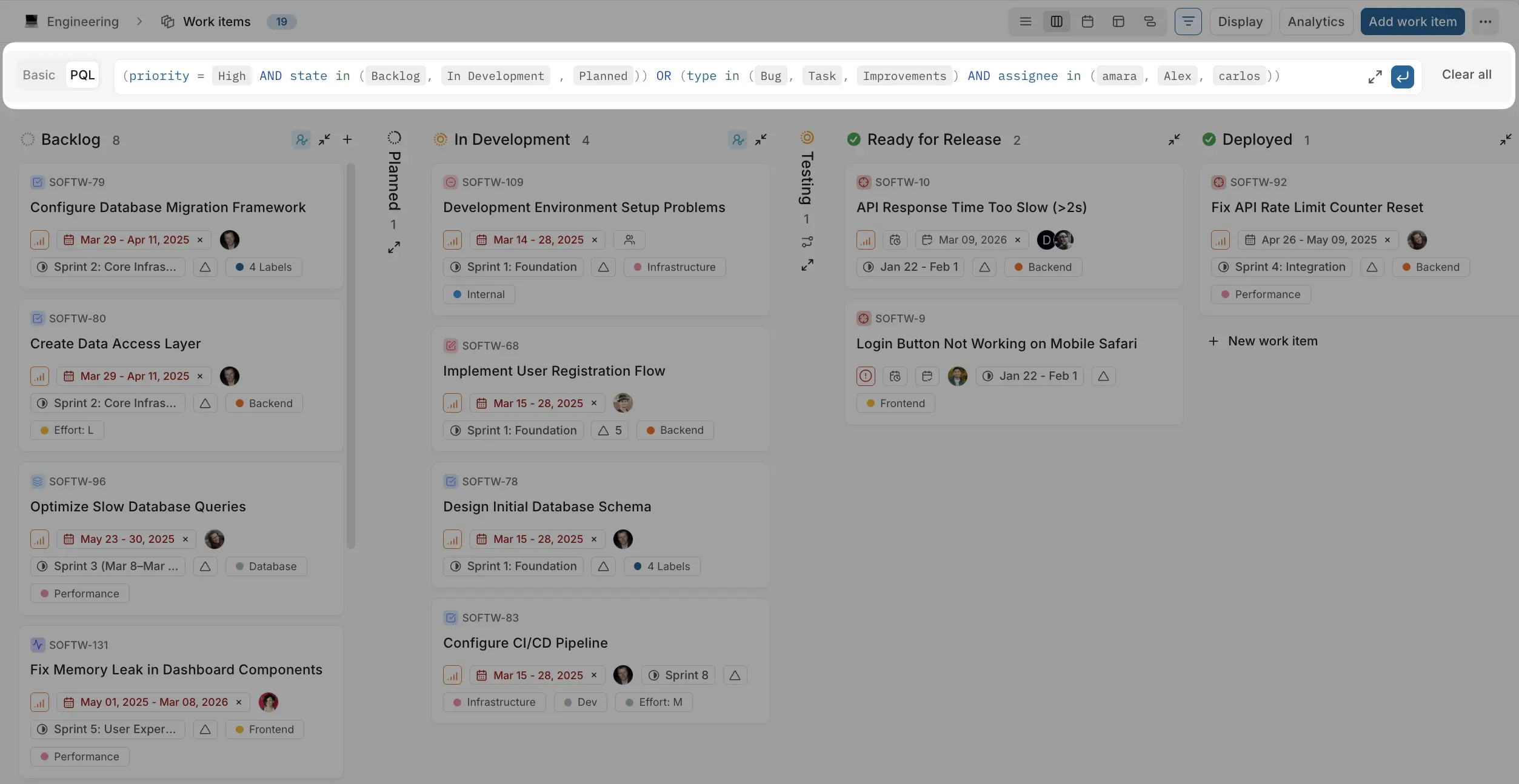
Use the PQL editor
Plane includes an interactive editor that helps you build queries.
To switch to PQL mode, click PQL in the filter bar.
When you start typing in the PQL field:
- A dropdown shows available fields and functions
- After selecting a field, you see operators
- Then you choose or type values
- Continue building your query using AND or OR
This guided experience lets you construct queries without memorizing syntax.
Query structure
PQL queries follow a simple pattern:
Field Operator ValueExample:
priority = HighThis returns all work items where priority is High.
You can also combine multiple conditions using the logical operators AND, OR, and NOT.
Using AND
type = Bug AND priority = HighThis returns work items that match both conditions.
Using OR
state = Todo OR state = In ProgressThis returns work items that match either condition.
Using NOT
NOT hasNoAssignee()This returns work items that do have an assignee.
Combined:
(priority = High AND state in (Backlog, In Progress, Todo)) OR (type in (Bug, Task, Improvements) AND assignee in (Ethan, Parker, Amanda))Sort and limit results
You can sort results and cap how many are returned by adding ORDER BY and LIMIT clauses to the end of a query.
priority = High ORDER BY dueDate ASC LIMIT 20- ORDER BY sorts the results by a field. Add
ASC(ascending, the default) orDESC(descending). - LIMIT caps the number of results returned. The maximum is 1000.
Fields you can sort by: priority, state, title, assignee, label, module, startDate, dueDate, createdAt, updatedAt, sortOrder, rank.
Save as view
Once you've built your query, click Save view to preserve it for quick access later. See Views for details.
Where PQL works
PQL is available wherever work items are listed:
- Work items
- Cycles
- Modules
- Views
- Teamspace work items
- Workspace views
The exact fields available in the editor depend on what is enabled for the project or workspace you are filtering. For example, cycle and module appear where those features are on, and custom properties appear when your work item types define them.
Fields reference
Text search
| Field | What it searches |
|---|---|
title | The work item title (name) only |
text | The work item title and description together, in a single condition |
Use text when you want to match a term whether it appears in the title or the body of a work item. For example, text ~ "login" returns work items with "login" in the title or the description.
Common fields
| Field | Filters on |
|---|---|
type | Work item type |
state | Workflow state |
stateGroup | State group (Backlog, Unstarted, Started, Completed, Cancelled) |
priority | Priority (Urgent, High, Medium, Low, None) |
assignee | Assigned members |
label | Labels applied |
cycle | Cycle membership |
module | Module membership |
milestone | Milestone |
mention | Members mentioned in the work item |
createdBy | Who created the work item |
project | Project the work item belongs to |
startDate | Start date |
dueDate | Due date |
createdAt | Creation date |
updatedAt | Last updated date |
Operators reference
Each field supports different operators. The available operators depend on the field type.
id
| Operator | Description |
|---|---|
= | ID matches exactly |
!= | ID does not match |
~ | ID contains text |
title
| Operator | Description |
|---|---|
= | Title matches exactly |
!= | Title does not match |
~ | Title contains text |
text
| Operator | Description |
|---|---|
= | Title or description matches the text |
!= | Title or description does not match the text |
~ | Title or description contains the text |
type
| Operator | Description |
|---|---|
IN | Type is any of the specified values |
NOT IN | Type is not any of the specified values |
= | Type matches exactly |
!= | Type does not match |
state
| Operator | Description |
|---|---|
IN | State is any of the specified values |
NOT IN | State is not any of the specified values |
= | State matches exactly |
!= | State does not match |
stateGroup
| Operator | Description |
|---|---|
IN | State group is any of the specified values |
NOT IN | State group is not any of the specified values |
= | State group matches exactly |
!= | State group does not match |
assignee
| Operator | Description |
|---|---|
IN | Assigned to any of the specified members |
NOT IN | Not assigned to any of the specified members |
= | Assigned to this member |
!= | Not assigned to this member |
IS NULL | No assignee |
priority
| Operator | Description |
|---|---|
IN | Priority is any of the specified values |
NOT IN | Priority is not any of the specified values |
= | Priority matches exactly |
!= | Priority does not match |
mention
| Operator | Description |
|---|---|
IN | Mentions any of the specified members |
NOT IN | Does not mention any of the specified members |
= | Mentions this member |
!= | Does not mention this member |
IS NULL | No mentions |
label
| Operator | Description |
|---|---|
IN | Has any of the specified labels |
NOT IN | Does not have any of the specified labels |
= | Has this label |
!= | Does not have this label |
IS NULL | No labels |
cycle
| Operator | Description |
|---|---|
IN | In any of the specified cycles |
NOT IN | Not in any of the specified cycles |
= | In this cycle |
!= | Not in this cycle |
IS NULL | Not in any cycle |
module
| Operator | Description |
|---|---|
IN | In any of the specified modules |
NOT IN | Not in any of the specified modules |
= | In this module |
!= | Not in this module |
IS NULL | Not in any module |
milestone
| Operator | Description |
|---|---|
IN | In any of the specified milestones |
NOT IN | Not in any of the specified milestones |
= | In this milestone |
!= | Not in this milestone |
IS NULL | No milestone |
startDate
| Operator | Description |
|---|---|
= | Start date is this date |
!= | Start date is not this date |
< | Start date is before this date |
<= | Start date is on or before this date |
> | Start date is after this date |
>= | Start date is on or after this date |
BETWEEN | Start date is within the specified range |
IS NULL | No start date set |
dueDate
| Operator | Description |
|---|---|
= | Due date is this date |
!= | Due date is not this date |
< | Due date is before this date |
<= | Due date is on or before this date |
> | Due date is after this date |
>= | Due date is on or after this date |
BETWEEN | Due date is within the specified range |
IS NULL | No due date set |
createdAt
| Operator | Description |
|---|---|
= | Created on this date |
!= | Not created on this date |
< | Created before this date |
<= | Created on or before this date |
> | Created after this date |
>= | Created on or after this date |
BETWEEN | Created within the specified range |
IS NULL | No creation date |
updatedAt
| Operator | Description |
|---|---|
= | Updated on this date |
!= | Not updated on this date |
< | Updated before this date |
<= | Updated on or before this date |
> | Updated after this date |
>= | Updated on or after this date |
BETWEEN | Updated within the specified range |
IS NULL | No update date |
createdBy
| Operator | Description |
|---|---|
IN | Created by any of the specified members |
NOT IN | Not created by any of the specified members |
= | Created by this member |
!= | Not created by this member |
Custom properties
The available operators depend on the property type.
Text
| Operator | Description |
|---|---|
= | Text matches exactly |
!= | Text does not match |
~ | Text contains value |
Number
| Operator | Description |
|---|---|
= | Number equals this value |
!= | Number does not equal this value |
< | Number is less than this value |
<= | Number is less than or equal to this value |
> | Number is greater than this value |
>= | Number is greater than or equal to this value |
BETWEEN | Number is within the specified range |
IS NULL | No number set |
Dropdown
| Operator | Description |
|---|---|
IN | Option is any of the specified values |
NOT IN | Option is not any of the specified values |
= | Option matches exactly |
!= | Option does not match |
IS NULL | No option selected |
Boolean
| Operator | Description |
|---|---|
= | Value is true or false |
!= | Value is not true or false |
Date
| Operator | Description |
|---|---|
= | Date is this date |
!= | Date is not this date |
< | Date is before this date |
<= | Date is on or before this date |
> | Date is after this date |
>= | Date is on or after this date |
BETWEEN | Date is within the specified range |
IS NULL | No date set |
Member picker
| Operator | Description |
|---|---|
IN | Member is any of the specified values |
NOT IN | Member is not any of the specified values |
= | Member matches exactly |
!= | Member does not match |
IS NULL | No member selected |
URL
| Operator | Description |
|---|---|
= | URL matches exactly |
!= | URL does not match |
~ | URL contains text |
Built-in functions
PQL includes functions that cover common scenarios. Type ( after a field, or start typing a function name, and the editor suggests the ones that fit.
Predicate functions
These are standalone conditions that return true or false. Use them on their own (and combine with NOT to invert).
| Function | Matches work items that |
|---|---|
isOverdue() | Are past their due date and still open |
hasNoAssignee() | Have no assignee |
hasNoLabel() | Have no labels |
isTopLevel() | Are not a sub-work item (no parent) |
isSubWorkItem() | Are a sub-work item (have a parent) |
hasChildren() | Have at least one sub-work item |
hasStartAndDueDates() | Have both a start date and a due date |
Relation functions
These match work items by their relationship to other work items. Each takes one or more work item identifiers (for example PROJ-123).
| Function | Matches work items that |
|---|---|
blockedBy("PROJ-1", …) | Are blocked by the given items |
blocks("PROJ-1", …) | Block the given items |
linkedTo("PROJ-1", …) | Are related to the given items |
duplicateOf("PROJ-1", …) | Are marked duplicate of the given items |
childOf("PROJ-1", …) | Are a child of the given items |
parentOf("PROJ-1", …) | Are a parent of the given items |
Example:
blockedBy("PROJ-42")